

Create Application user for Dynamics CRM 365
If you ever need a service user for some kind of data interface between Dynamics […]
If you ever need a service user for some kind of data interface between Dynamics CRM 365 and some other system, you might want to use application users for accessing Dynamics data.
Application users have one huge advantage: You do NOT need an extra license!!!
In the following post I’ll show you step by step how you create an application user in Azure and later on in Dynamics CRM 365.
In the first step we need to create an App registration in Azure. Every application (in our case early bound entity code generation). This application will get assigned the application user(s).
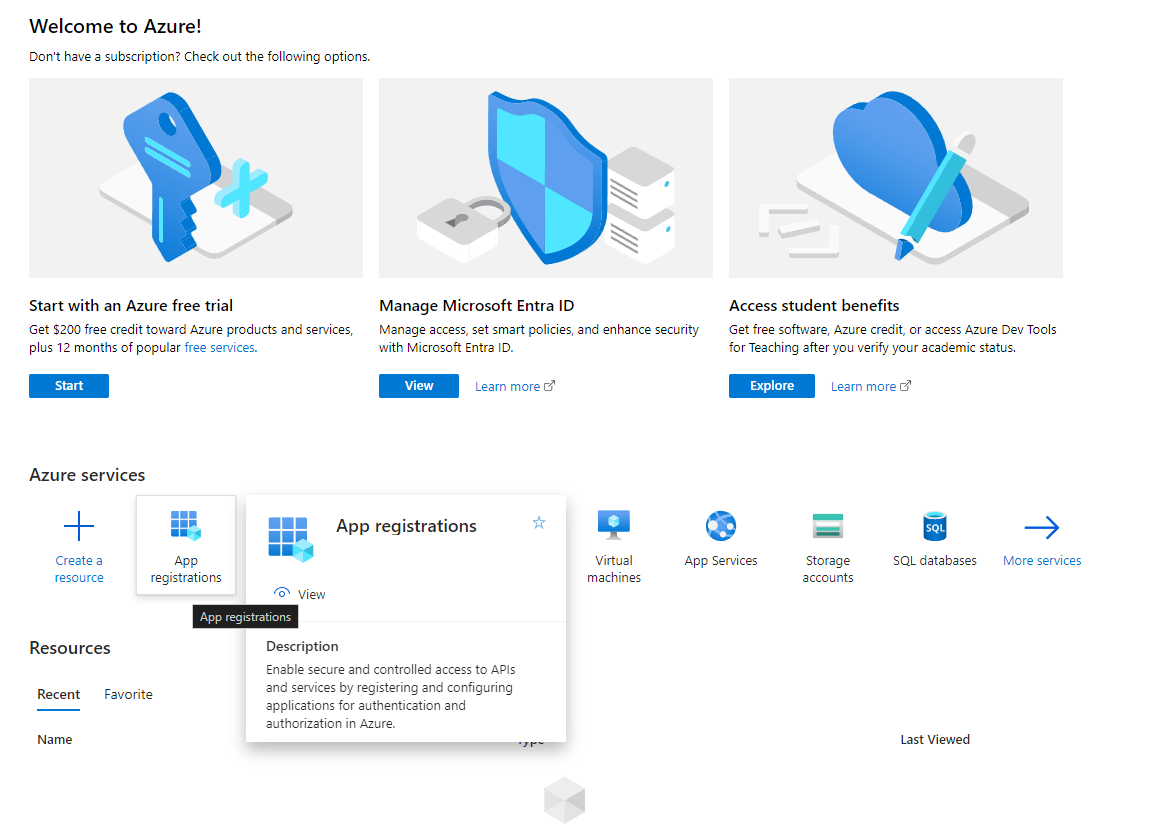
1.Therefore open the Azure portal
2. Search for App Registrations
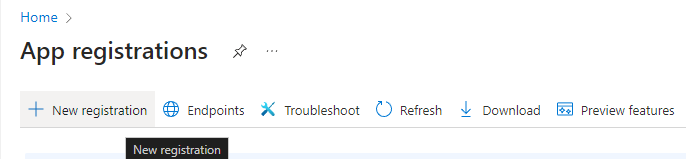
3. Select New registration
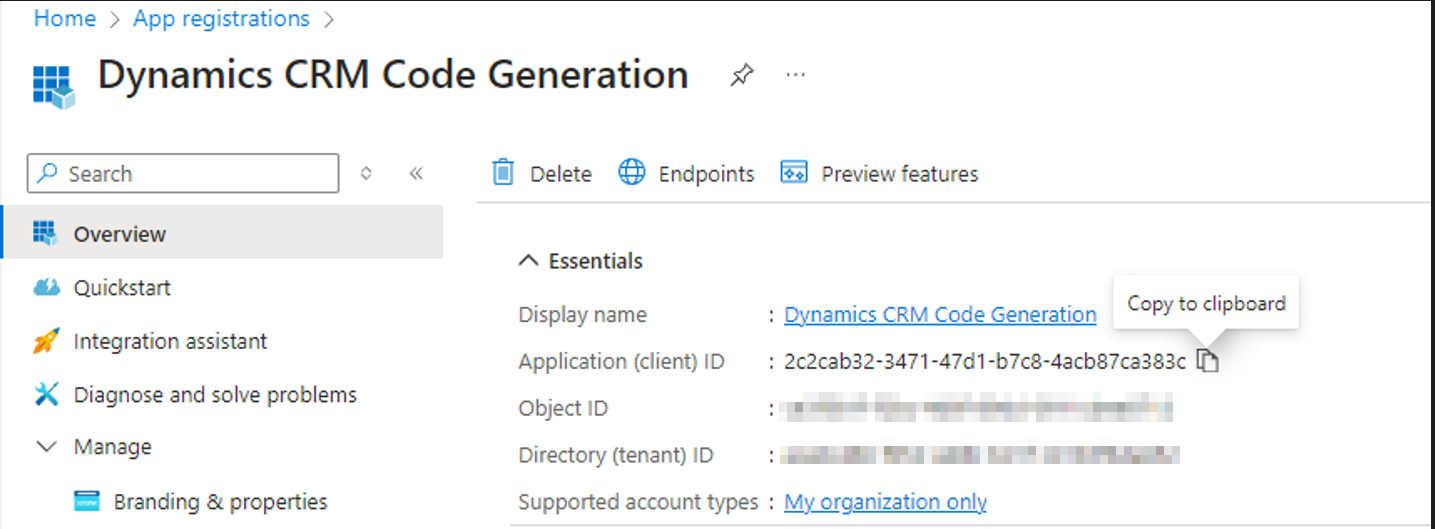
Enter all the required data.
After the creation you can find the Application ID in the Overview Section. Copy it for later use in the Power Platform Admin Panel (see step 13).
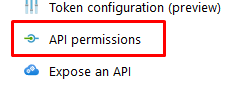
4. Navigate to API permissions
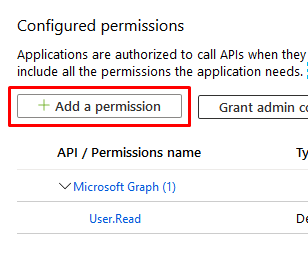
5. Click on Add a permission
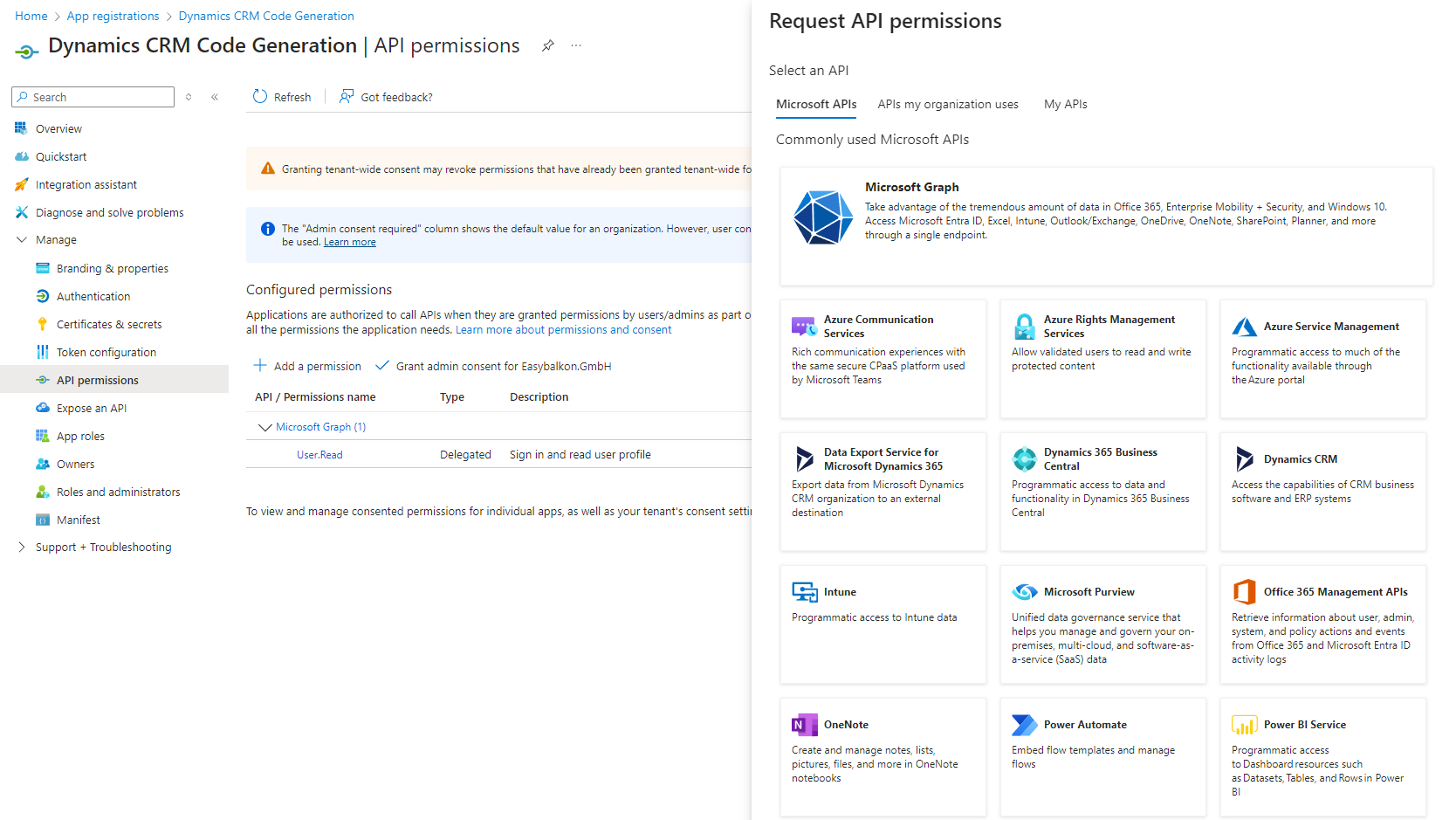
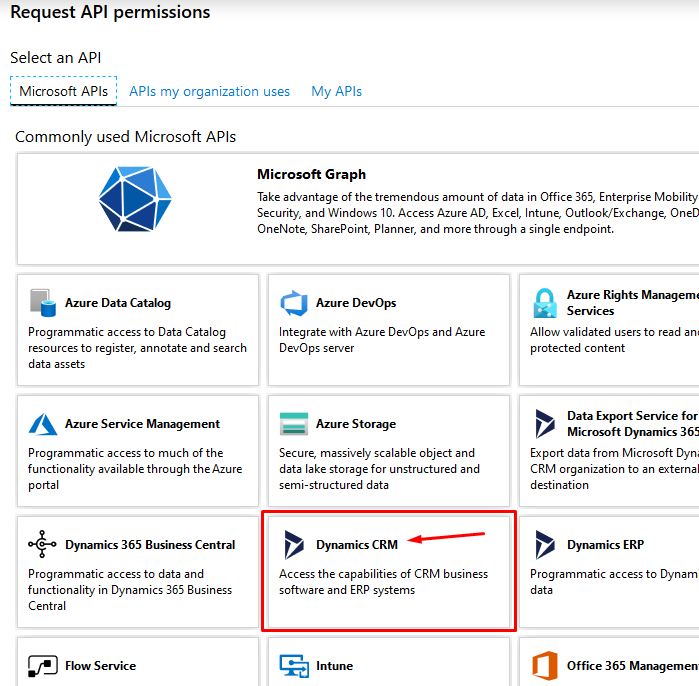
6. In the opened window (tab ‚Microsoft APIs‘) select Dynamics CRM
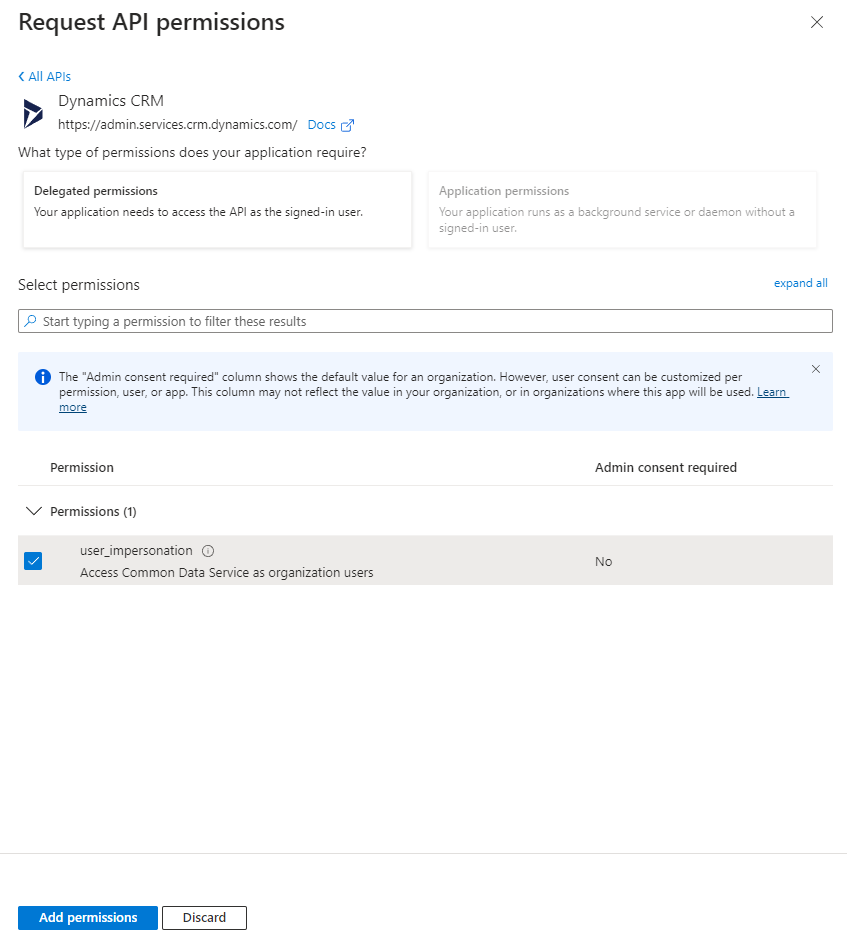
7. Select the user_impersonation and click on Add permissions
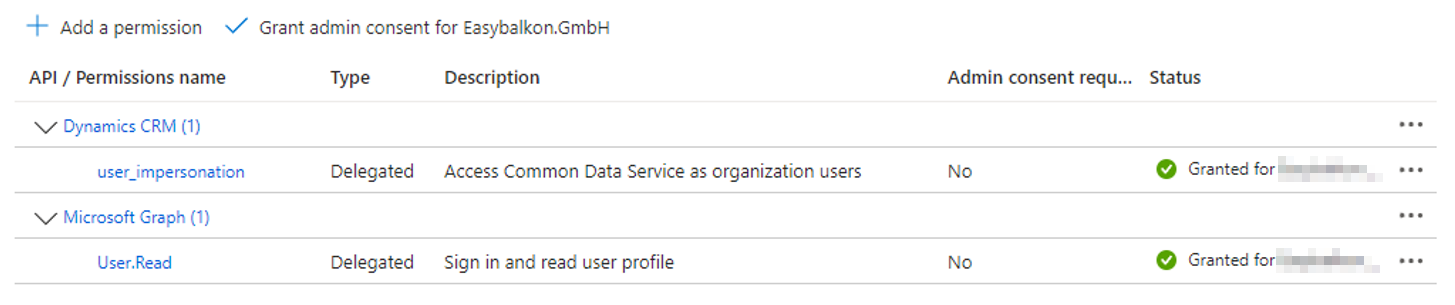
8. Grant admin consent for organization
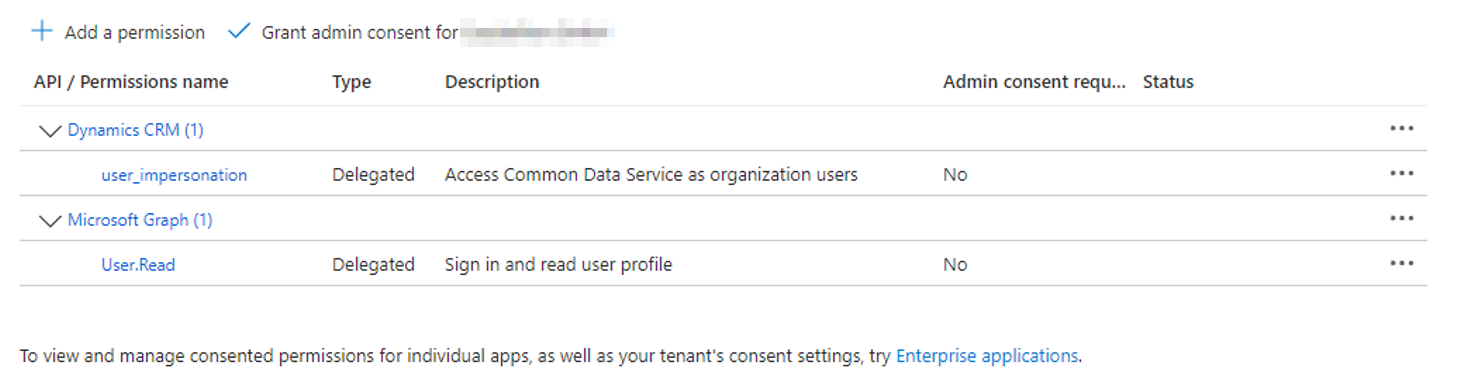
After granting admin consent, green checks appear
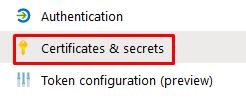
9. Navigate to Certificates & Secrets
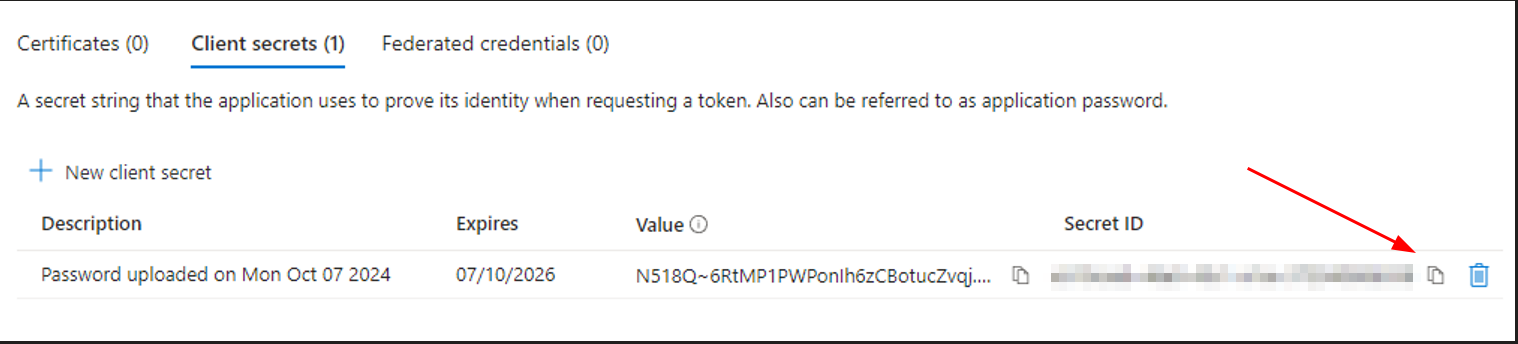
10. Click on New client secret, add a description and an expiration date.
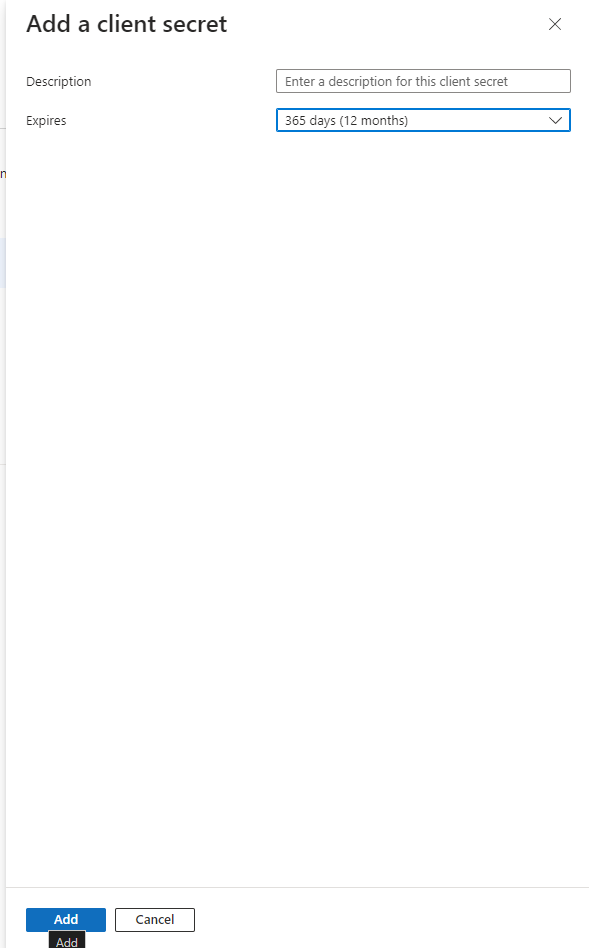
11. Copy the secret and store it in you password manager.
ATTENTION: The secret will only be shown once – you can not see or copy it after the creation due to security precautions.
We are now done in the Azure Portal and switch to the Power Platform admin center:
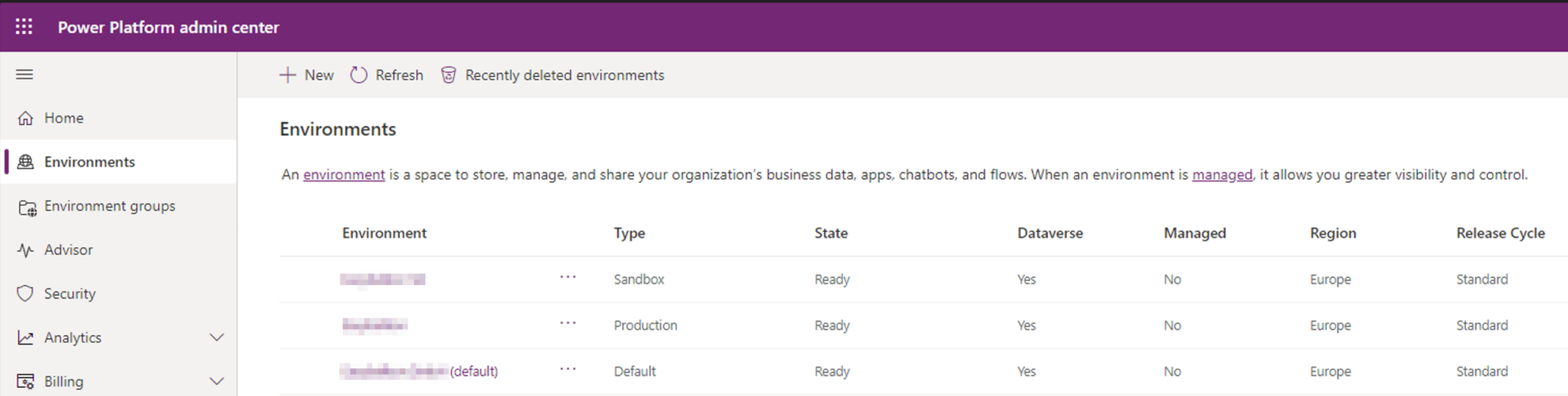
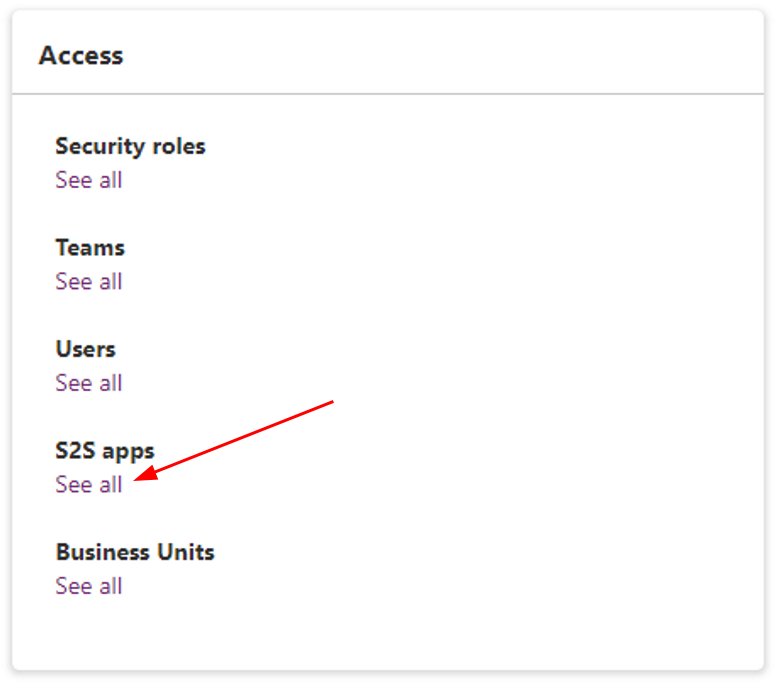
12. Select the environment in which you want to add the application user. On the right panel in the Access card select „See all“ under the S2S apps headline.
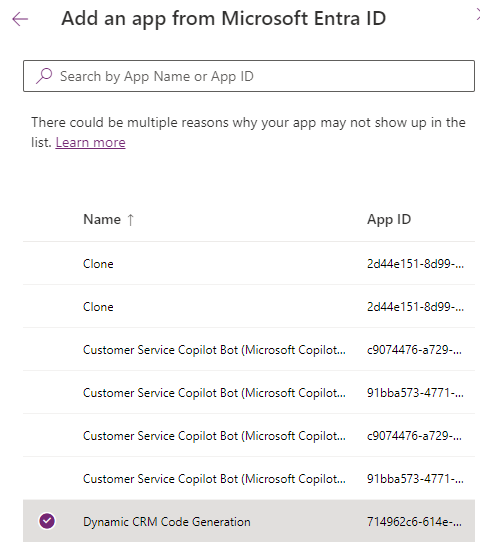
13. Click + New app user -> select your app registration from step 3.
14. Select a Business unit and Security roles
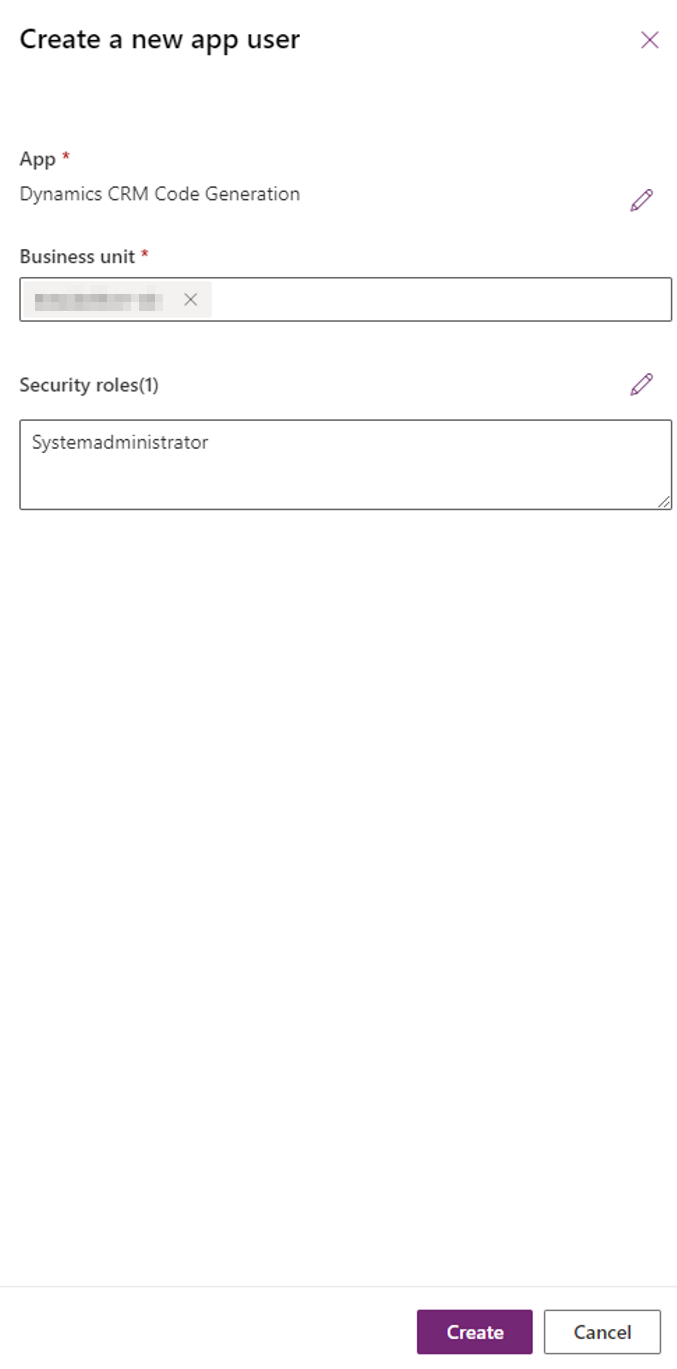
15. Click Create.
The user can now be used in your applications!
Summary:
The client id you can find in step 3.
The client secrect you can find in step 11.