Deploying ArgoCD with Terraform & Entra ID SSO
We are big fans of infrastructure-as-code and declarative deployments. This is why ArgoCD is a core part of our toolset when it comes to deploying Kubernetes workloads. This blog post will help you put all the bits and pieces together, so that you can implement a fully declarative deployment of ArgoCD to your Kubernetes cluster, including Entra ID (a.k.a., Azure Active Directory) SSO configuration for your developers.
Prerequisites
To make the following Terraform configuration snippets work, we are using the following providers:
terraform {
  required_providers {
    azurerm = {
      source  = "hashicorp/azurerm"
      version = ">= 3.82.0"
    }
    kubernetes = {
      source  = "hashicorp/kubernetes"
      version = ">= 2.32.0"
    }
    helm = {
      source  = "hashicorp/helm"
      version = ">= 2.16.0"
    }
    azuread = {
      source  = "hashicorp/azuread"
      version = ">= 3.0.2"
    }
    time = {
      source  = "hashicorp/time"
      version = ">= 0.12.1"
    }
  }
}
We usually do not expose our ArgoCD instance to the internet, and instead, have the developers forward the port using kubectl. This is why we are using localhost in all urls in this blog post.
ArgoCD Entra ID Single-Sign-On using Terraform
Before anything else, you need Terraform to create your app registration. This app registration allows ArgoCD to authenticate your users against your Entra ID tenant.
The following code:
- sets up the app registration
- creates an app registration secret
- configures the automatic secret rotation
- creates the service principal for the app registration
resource "azuread_application" "argocd" {
  display_name     = "argocd-myapp-dev"
  sign_in_audience = "AzureADMyOrg"

  web {
    redirect_uris = [
      "http://localhost:8080/api/dex/callback"
    ]
  }
  public_client {
    redirect_uris = [
      "http://localhost:8085/auth/callback"
    ]

  }

  #https://learn.microsoft.com/en-us/graph/permissions-reference#userread
  required_resource_access {
    resource_app_id = "00000003-0000-0000-c000-000000000000" #Microsoft Graph
    resource_access {
      id   = "e1fe6dd8-ba31-4d61-89e7-88639da4683d" # User.Read
      type = "Scope"
    }
  }

  group_membership_claims = ["ApplicationGroup"]
}

resource "time_rotating" "argocd_password_rotation" {
  rotation_years = 1
}

resource "azuread_application_password" "argocd" {
  application_id = azuread_application.argocd.id
  display_name   = "Secret for argocd - managed by terraform"
  # 1 year after rotation period
  # end date should be larger than the rotation period,
  # because terraform needs to be deployed for the rotation to take effect
  end_date       = timeadd(time_rotating.argocd_password_rotation.rotation_rfc3339, "${24 * 365}h")
  rotate_when_changed = {
    rotation = time_rotating.argocd_password_rotation.id
  }
}

resource "azuread_service_principal" "argocd" {
  client_id = azuread_application.argocd.client_id
}
The GUIDs used in the app registration for the application ID and the resource ID are well known IDs which are static for all tenants:
To assign users to our ArgoCD instance, we need to use an Entra ID security group. Depending on your requirements, you can either create one using Terraform or use a pre-existing one. In this example, we assume that we already have an Entra ID security group, and the object ID of this group is passed as a variable to our Terraform module.
The following code snippet allows all users of the specified group to use the app registration.
resource "azuread_app_role_assignment" "argo_admin_group" {
  app_role_id         = "00000000-0000-0000-0000-000000000000"
  principal_object_id = var.admin_group_object_id
  resource_object_id  = azuread_service_principal.argocd.object_id
}

data "azuread_group" "admin_group" {
  object_id = var.admin_group_object_id
}
While azuread_app_role_assignment is usually used to assign users or groups to app roles that are published by the app registration, the empty GUID has a special meaning here. It allows us to assign Users & Groups to the app registration’s „Default Access“ app role, which every app registration has and represents the same functionality as the „Users & Groups“ blade in an Entra ID Enterprise Application.
Interestingly, this also works in the Entra AD free tier, where you would see this warning if you try to add a security group to the app registration: „Groups are not available for assignment due to your Active Directory plan level. You can assign individual users to the application.„
Deploy ArgoCD using Helm & Terraform
Now that we configured all prerequisites, we can finally install ArgoCD. We usually do this using the helm provider in Terraform.
resource "helm_release" "argocd" {
  name = "argocd"

  repository       = "https://argoproj.github.io/argo-helm"
  chart            = "argo-cd"
  namespace        = "argocd"
  create_namespace = true
  version          = "7.6.10"

  values = [templatefile("${path.module}/manifests/argocd.yaml", {
    tenant_id        = data.azurerm_subscription.current.tenant_id,
    application_id   = azuread_application.argocd.client_id,
    app_secret       = azuread_application_password.argocd.value
    admin_group_name = data.azuread_group.admin_group.display_name
  })]

  depends_on = [azurerm_kubernetes_cluster_node_pool.my_app_node_pool]
}
You also need to supply some values and secrets to the helm chart. To do this, we make use of the Terraform templatefile command. Our basic ArgoCD configuration file looks like this:
global:
  domain: http://localhost:8080

server:
  extraArgs:
    - --insecure

configs:
  cm:
    url: http://localhost:8080
    dex.config: |
            connectors:
            - type: microsoft
              id: microsoft
              name: my connector name
              config:
                clientID: ${application_id}
                clientSecret: ${app_secret}
                redirectURI: http://localhost:8080/api/dex/callback
                tenant: ${tenant_id}
                groups:
                  - ${admin_group_name}
  rbac:
    policy.csv: |
      p, role:org-admin, applications, *, */*, allow
      p, role:org-admin, clusters, get, *, allow
      p, role:org-admin, repositories, get, *, allow
      p, role:org-admin, repositories, create, *, allow
      p, role:org-admin, repositories, update, *, allow
      p, role:org-admin, repositories, delete, *, allow
      g, "${admin_group_name}", role:org-admin
These code snippets install the ArgoCD chart using helm and insert the necessary secrets for the SSO connector into the chart values using the Terraform templatefile command. The rbac policy grants everyone in the specified Entra ID security group the ‚org-admin‘ role in our ArgoCD instance. If you want a more fine grained security concept, you have to modify the policy.csv section. The documentation ↗ is very detailed on the available permission configuration.
Please note the depends_on in the helm_release: We need to make sure that we have a working node pool before we try to install helm charts.
Accessing ArgoCD
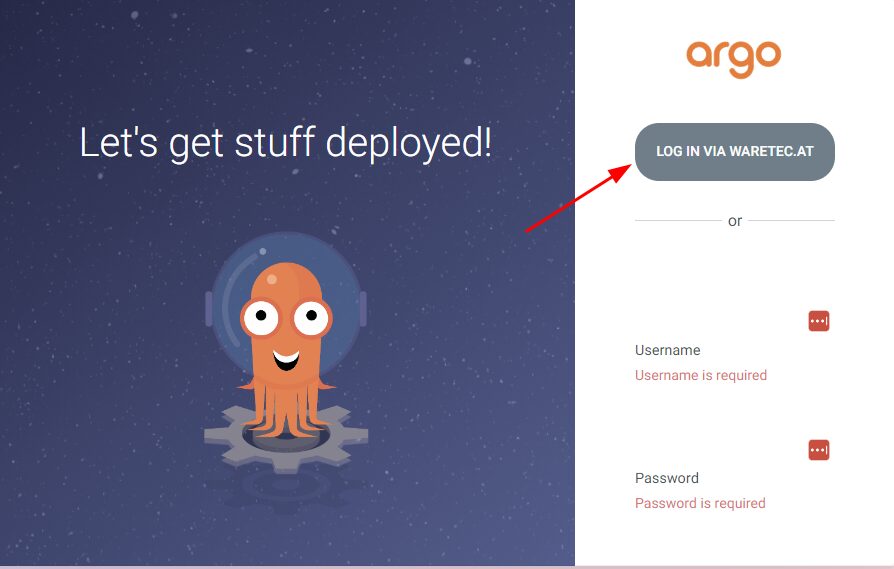
Finally, we can run kubectl -n argocd port-forward svc/argocd-server 8080:80 and login to our ArgoCD instance using SSO: